


A printed pick list is accurate for about as long as it takes to walk to the first aisle. After that, stock moves, someone grabs the wrong carton, and the correction waits until a clerk types up the sheet at the end of the shift. Moving warehouse work onto phones and scanners closes that gap, because the system records each movement at the shelf where it happens. This guide explains how ERPNext supports mobile warehouse work today, where the standard screens stop, and how to roll scanning out without breaking stock accuracy.
How Does ERPNext Handle Mobile Warehouse Work?
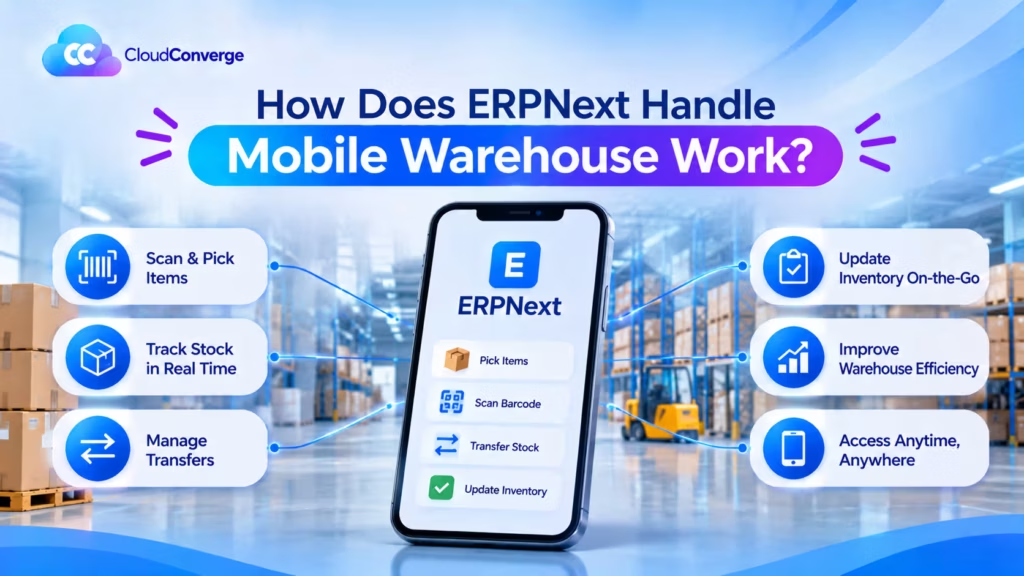
ERPNext runs warehouse work from any phone browser, because its interface is responsive and its stock forms accept barcode input from a phone camera or a scan gun. Pick Lists have a Scan Mode that checks each item against the order. For high-volume floors, a mobile app built on ERPNext adds guided, task-by-task screens. Cloud Converge implements both.
- What it is: recording receipts, put-away, picks, transfers and counts by scanning barcodes on a handheld device, so ERPNext stock updates in real time.
- Who it suits: distributors, manufacturers and D2C brands running anything from a single depot to several sites across Europe or Asia.
- Standard tools in ERPNext: item barcodes (including one per unit of measure), Pick List Scan Mode, Putaway Rules, Stock Entry and Stock Reconciliation.
- Devices: an Android or iOS phone using its camera, a Bluetooth ring scanner paired to a phone, or a rugged handheld with a built-in scan engine.
- Proof: CloudConverge is an ERPNext partner with ISO 27001 and ISO 9001:2015 certified delivery.
- Region note: Indian consignments above the e-way bill threshold need an e-way bill, which the India Compliance app generates from the same ERPNext documents.
How a scan-based workflow runs
- A Sales Order, Work Order or Material Request creates a Pick List with suggested warehouse locations.
- The picker opens it on a phone with Scan Mode on.
- Each scan confirms the right item and adds to the picked quantity.
- A supervisor submits the Pick List once the quantities match.
- ERPNext creates the Delivery Note or Stock Entry from it, so the stock ledger updates without retyping.
Valuable Points to Know Before Moving Warehouse Work onto Phones
- Fix item barcodes before buying devices. Scanning only helps when every SKU carries one readable label that matches the Item Barcode table. Clean duplicates and missing codes first, or pickers will fall back to typing.
- Give boxes their own barcode. ERPNext lets you attach a different barcode to each unit of measure, so scanning an outer carton can add twelve units while the single piece adds one. This cuts scan counts on case-pick lines.
- Label locations, not only products. A scan that confirms the item but not the bin still allows stock to sit in the wrong place. Set up zones or racks as child warehouses and put a barcode on each one.
- Plan for weak Wi-Fi. The standard ERPNext screens run in a browser and need a live connection. Survey coverage in cold rooms and behind steel racking before go-live, or choose an app with an offline queue.
- Use Prompt Qty for bulk lines. On a Pick List, Prompt Qty asks the picker to enter a quantity after a scan instead of adding one per scan. Switch it on for items picked in tens or hundreds.
- Keep supervisors in the submit step. Let pickers scan and save; let a team lead submit. This keeps a check between the shelf and the ledger without bringing paper back.
Paper Pick Lists vs Phone Scanning: What Actually Changes
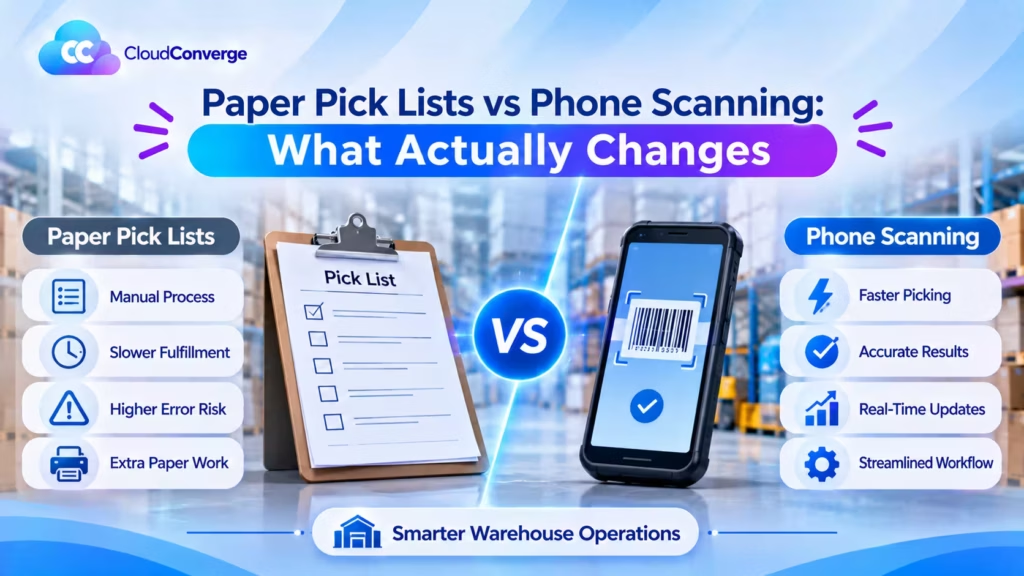
For years the standard pattern was simple: the office printed a pick list, a picker ticked lines with a pen, and a clerk keyed the results into the system before the van left. It worked, and plenty of well-run warehouses still use it. Its weakness is the delay between the physical move and the system record, because every error made in that window surfaces later as a stock mismatch.
Scanning removes most of that delay, but it also moves responsibility. The picker is now posting data, not just moving cartons.
| Criteria | Paper pick list with desk entry | Phone or handheld scanning in ERPNext |
| When stock updates | After a clerk keys the sheet, often hours later | When the Pick List or Stock Entry is submitted, usually minutes after the pick |
| Wrong-item check | Picker reads the code by eye | Scan Mode checks every scan against the list |
| Batch and expiry | Picker chooses from memory or labels | ERPNext suggests the warehouse holding the batch closest to expiry |
| Audit trail | Initials on a sheet that may be filed or lost | Each document records the user and time |
| Setup effort | Printer and paper | Clean barcodes, labelled locations, devices and Wi-Fi coverage |
| Best fit | Very low volume, few SKUs, one picker | Growing SKU counts, several pickers, batch or serial tracking |
Our recommendation: keep paper only where volume is tiny and the same person picks and enters the data. Once two or more people pick from the same stock, or you track batches, scanning repays the setup work through fewer mis-picks and faster month-end counts.
Six Warehouse Workflows on a Phone, Mapped to ERPNext
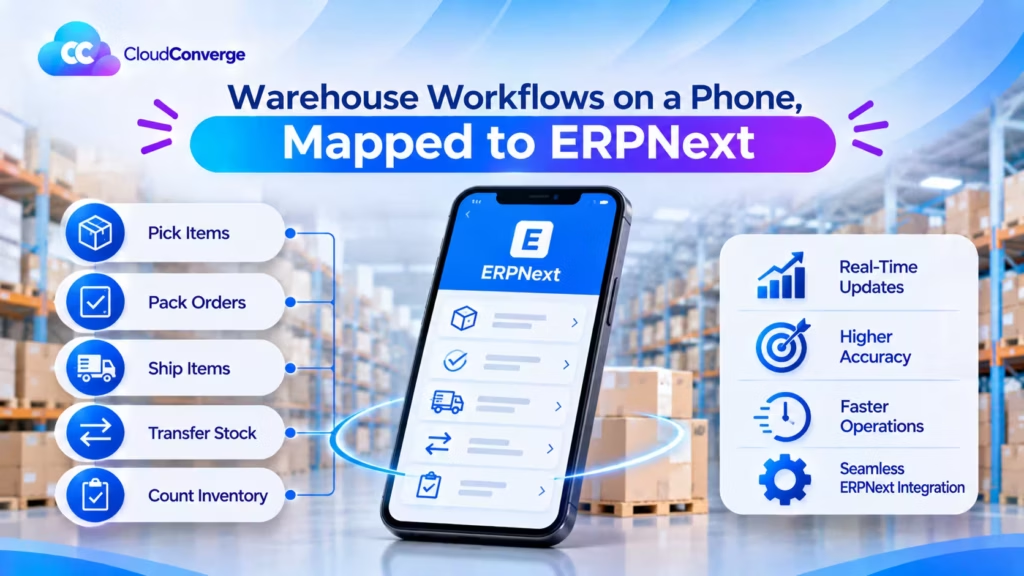
Every mobile flow below posts a normal ERPNext document. That matters: valuation, batch tracking and the general ledger behave exactly as they would if someone had keyed the entry at a desk, so finance does not need a second set of rules.
| Workflow | ERPNext document | What the operator scans | What to watch |
| Receiving | Purchase Receipt from the Purchase Order | Each item or carton barcode | Over-receipt tolerance in Stock Settings |
| Put-away | Purchase Receipt or Stock Entry with Apply Putaway Rule | Item, then the target location | Capacity set per item and warehouse |
| Picking | Pick List from a Sales Order, Work Order or Material Request | Items in Scan Mode | Run Update Current Stock if the list is old |
| Packing and dispatch | Delivery Note created from the submitted Pick List | Item or carton at the packing bench | Packing Slips for multi-box orders |
| Transfers | Stock Entry, Material Transfer | Source item, then the destination | Goods-in-transit warehouse between sites |
| Counting | Stock Reconciliation with a default warehouse | Each item in the counted location | Investigate large variances before submit |
Receiving and put-away
The receiver opens the Purchase Receipt created from the order and scans each item, so quantities fill in as cartons come off the lorry. Putaway Rules then split the receipt across locations by priority and free capacity: if the first location holds four cartons and five arrive, the fifth goes to the next one. Teams that unload into a staging area first can receive there and move stock later with a Material Transfer, applying the same rules.
Picking, packing and dispatch
A Pick List suggests locations using first-in, first-out, and for batched items it points to the batch nearest expiry. With Scan Mode on, each scan confirms the item is on the list. Once the supervisor submits, the Delivery Note is created from the Pick List rather than retyped. If a picker overrides a batch on purpose, the Pick Manually option stops ERPNext from replacing that choice on save.
Transfers and stock counts
Internal moves use a Material Transfer Stock Entry. For counts, set a default warehouse on the Stock Reconciliation, scan through one location, and ERPNext shows the difference against book stock on each row. A cycle count of one aisle a day can replace the annual shutdown count and gives finance a steadier stock value.
Standard Screens or a Dedicated Mobile App?
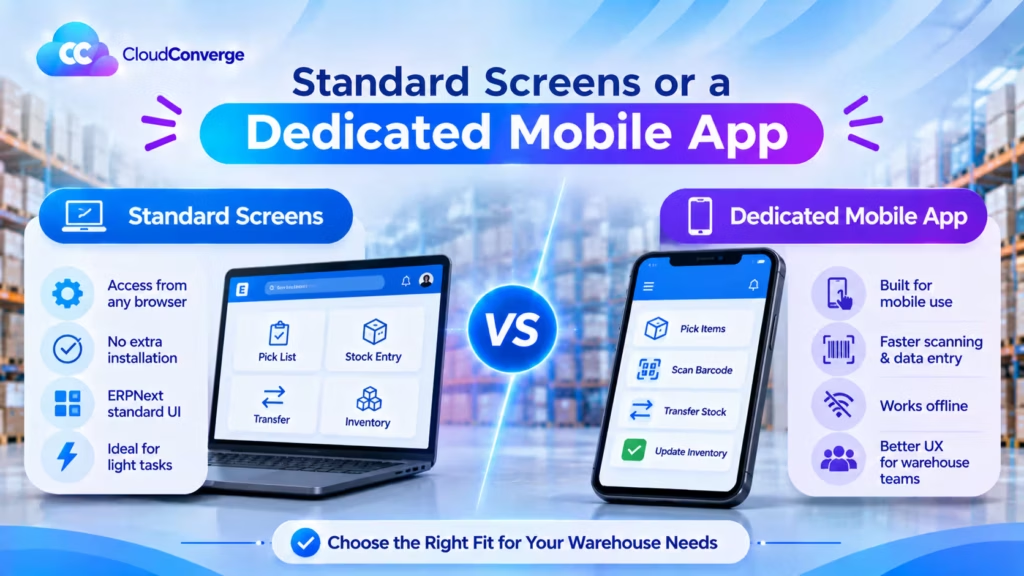
The standard ERPNext forms on a phone browser are enough to start, and they cost nothing extra. They were designed for a desk, though, so a picker scrolls past fields that do not matter on the floor. A dedicated app built on ERPNext shows one task at a time and can keep working when the signal drops.
| Criteria | Standard ERPNext in a phone browser | Guided mobile app on ERPNext |
| Cost to start | Configuration and training only | Build or licence plus configuration |
| Screen design | Full desk forms, resized | One step per screen, large scan buttons |
| Offline use | Needs a live connection | Possible with a local queue that syncs later |
| Scanner input | Phone camera or a Bluetooth scanner acting as a keyboard | Same, often with sound and vibration on a mismatch |
| Upgrades | Follow ERPNext releases directly | App must be tested against each new ERPNext version |
| Best fit | Up to a few pickers, steady Wi-Fi | Busy floors, cold stores, shift workers new to ERP |
Our recommendation: pilot with the standard screens for two weeks. If pickers fight the forms or lose signal in parts of the building, that is the evidence for a guided app, and you will know exactly which screens it needs.
Setup checklist
- Load every barcode, including carton barcodes linked to their unit of measure, into the Item Barcode table.
- Build the warehouse tree down to the level you want to scan, such as zone or rack, and print location labels.
- Create Putaway Rules with realistic capacities for the fast movers.
- Give floor staff a role that can create and save stock documents, and a separate supervisor role that can submit them.
- Test the devices on the busiest aisle at the busiest hour, not in the office.
Mistakes that undo the benefit
- Scanning without location discipline. Stock is booked to the parent warehouse and nobody can find it.
- Letting old Pick Lists sit. Quantities shift overnight; refresh the list before picking starts.
- Skipping the variance check. A large count difference is usually an unposted movement, not theft, so trace it before submitting.
Editing core ERPNext forms for mobile. Put mobile changes in a separate Frappe app so upgrades stay simple.
Regional Notes for Europe and Asia
India. Consignments above the e-way bill value threshold need one, and that includes transfers between your own branches registered under different GSTINs. ERPNext with the India Compliance app generates it from the Delivery Note or the transfer document, so faster scanning at dispatch only helps if the e-way bill step keeps pace. Configure it before go-live, not after the first held lorry.
Europe. Scanning logs record which user moved which item and when, which is personal data under GDPR when linked to named staff. Agree retention periods and who can see operator-level reports, and sign a data processing agreement with whoever hosts ERPNext.
Southeast Asia and the Gulf. Floor teams often work in several languages. ERPNext supports per-user language settings, and Arabic users get a right-to-left layout, so set each picker’s language rather than translating labels by hand.
Devices everywhere. Mid-range Android phones in rugged cases are the usual entry point. Move to dedicated handhelds with built-in scan engines when shifts are long or scan counts run into the thousands per day.
Industries Where Phone Scanning Pays Off in ERPNext
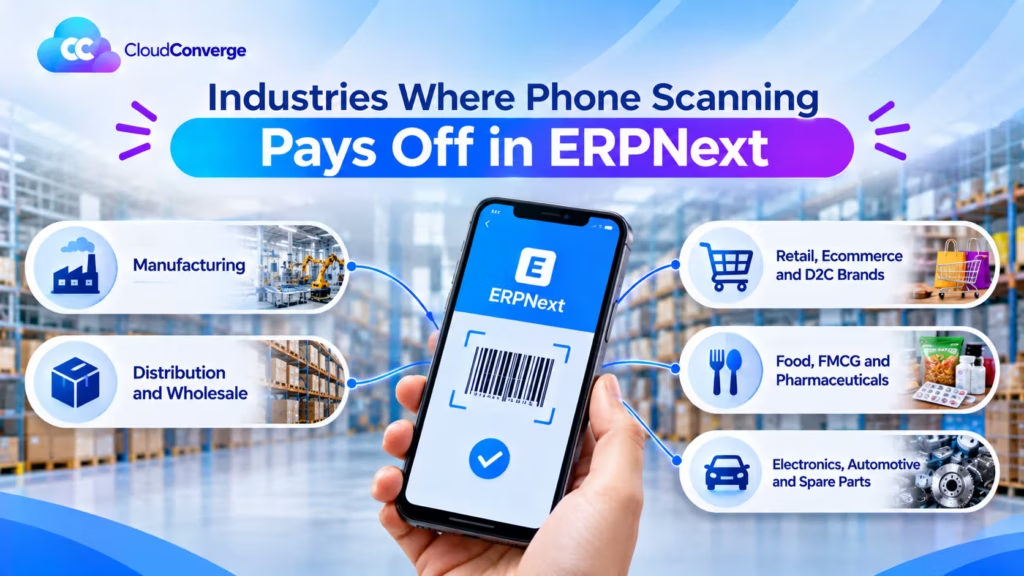
The scanning tools are the same in every sector, but the workflow that earns the investment back is not. A distributor wins on picking speed, a food producer on expiry control, an electronics firm on serial traceability. Start with the flow that hurts most in your industry and add the rest once pickers trust the devices.
Manufacturing
The busiest scan point is the stores counter, not dispatch. A Pick List raised from a Work Order lists the raw materials for the quantity being built, the storekeeper scans each one, and the Material Transfer for Manufacture moves them to work-in-progress. Shortages show up before the line starts, rather than halfway through a shift. Our ERPNext Go app also brings work orders and quality inspections onto the shop floor.
Distribution and wholesale
Volume picking from several depots is where paper breaks first. Carton barcodes linked to their unit of measure keep case picks fast, Putaway Rules stop fast movers from scattering across racks, and a goods-in-transit warehouse shows what is on the road between depots. Delivery Notes created straight from scanned Pick Lists shorten the gap between picking and invoicing.
Retail, ecommerce and D2C brands
Orders arrive from the storefront in small baskets with many different SKUs, so a wrong item is the costliest error. When a Shopify store feeds Sales Orders into ERPNext through an integration, each order becomes a Pick List and Scan Mode confirms every line before packing. Returns scanned back against the original Delivery Note put stock on sale again faster.
Food, FMCG and pharmaceuticals
Shelf life drives these warehouses. ERPNext points pickers to the batch nearest expiry, scanning records exactly which batch left for which customer, and a Quality Inspection on the Purchase Receipt can hold incoming goods until they pass. For pharmaceutical distributors, batch-level traceability is the starting point for any recall; confirm your regulator’s specific record-keeping rules with your quality lead.
Electronics, automotive and spare parts
High-value parts and warranty claims make serial numbers the priority. Scanning each serial at receipt and dispatch ties every unit to a supplier and a customer, which answers warranty questions in seconds. Multiple barcodes per item help where the manufacturer’s code and your own part number both appear on the box.
When to look further: third-party logistics firms that bill clients by storage space or handling events usually need a dedicated warehouse system on top of ERPNext, or custom billing work. We say so early in the first call.
How Cloud Converge Helps
Cloud Converge is an ERPNext partner, and our team handles the parts of a warehouse rollout that decide whether scanning sticks: cleaning item and barcode data, designing the warehouse tree, setting Putaway Rules, configuring roles, and training pickers on their own stock. Where the standard screens fall short, our ERPNext Go app puts stock receipts, transfers, work orders and quality inspections on a phone, and our ERPNext developers build further flows as a separate Frappe app you own.
Delivery follows ISO 27001 and ISO 9001:2015 certified processes, led by a named Project Manager. You can work with us on a fixed-price scope, a dedicated team, agile sprints or hourly support.
Find Out If ERPNext Fits Your Warehouse
Paper still works until the day two pickers grab the same carton. Before that day, test scanning against your own aisles, labels and order volumes with a team that has configured ERPNext stock before. Book a free consultation and get a practical view of what your warehouse needs, with no obligation.
Frequently Asked Questions
Does ERPNext have a mobile app for the warehouse?
ERPNext itself runs in any mobile browser, and its stock forms accept scans from a phone camera or a Bluetooth scanner. There is no separate official warehouse app in the core product, so teams that want guided, one-task screens use an app built on ERPNext, such as CloudConverge’s ERPNext Go.
Can I scan barcodes with a phone camera instead of a scanner?
Yes. Logged in on a smartphone, staff can use the camera to scan items into supported ERPNext documents. Camera scanning suits low to moderate volumes; dedicated scanners are faster for long shifts.
Which ERPNext documents support barcode scanning?
Purchase Receipts, Delivery Notes, Sales Invoices, Stock Reconciliation and Pick Lists all accept scanned barcodes. Pick Lists add Scan Mode to confirm each item and Prompt Qty for bulk quantities.
Does scanning work without Wi-Fi?
The standard ERPNext screens need a live connection. If parts of your building lose signal, either improve coverage or use a mobile app with an offline queue that syncs when the device reconnects.
How long does it take to move a warehouse from paper to scanning?
It depends on barcode quality, the number of locations and how many workflows you move at once. Starting with picking alone and adding receiving and counts later is usually the lowest-risk path. We give a timeline after a free scoping call.